
Paragliding Experience Blog
How to Power Reset MipFly One
Posted by Martin Havel on
In the case of a freeze, when the device gets unresponsive, a hard shutdown can be performed by holding the power button pressed for a few seconds. This procedure will cut the power to the A20 microprocessor without performing a graceful shutdown, with the risk of SD card corruption. If you ever get in the case of a corrupted SD card you can re-flash it following this procedure, however, any settings and files you had on it will be lost.
Paragliding Accidents and Swiss Cheese Model Approach
Posted by Martin Havel on
MipFly One Versioning and Updates
Posted by Martin Havel on
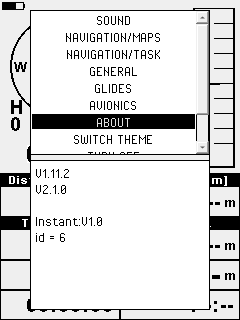
MipFly One Paragliding GPS Vario Versioning and Updates There are 3 different main hardware and software levels on MipFly One. They are represented by the operating system, the firmware that runs on the real-time part of the hardware and the VarioQt application that runs on top of the previous two layers. Each one has a version attached to it in order to be easily trackable.To get information about the versions of each level you have to navigate to Menu > About. The expected output can be seen in Fig. 3. Fig. 3 About screen On this screen capture,...
MipFly One Firmware Update
Posted by Martin Havel on
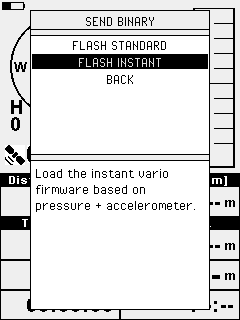
MipFly One Paragliding GPS Vario Firmware Update Together with the VarioQt update, in the same package, the 2 binaries for the firmware updates are provided. These binaries can be flashed using the built-in bootload functionality. To make the firmware update you have to navigate to Menu > General > Bootload and select the desired firmware (standard for baro only and instant for inercial augmented vario). The firmware update procedure should be as follows: Fig. 5 Bootload procedure After the bootload procedure, the variometer function should return to normal in about 30". If the vario function doesn't return please reboot the instrument....
MipFly One VarioQt Updates
Posted by Martin Havel on
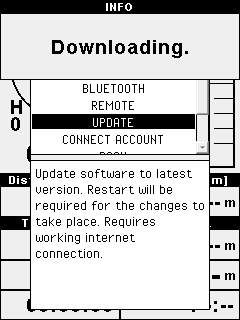
MipFly One Paragliding GPS Vario VarioQt Updates Once the pairing with an internet enabled device has been done and the BNEP connection established, the VarioQt update can easily be performed from the menu. For this please navigate to Menu > Update. Fig. 4 VarioQt update via BNEP connection Once the update is complete a system reboot is required for it to take effect. Together with this update step, new firmware files are also fetched from the server for easy firmware updates. If direct internet updates are not an option for you than a second more labor-intensive method can be used. For...